
User-Defined Functions in MATLAB: From Scripts to a Golf Ball Simulator.
Summary
This workshop moves first-year engineering students from sequential scripts to modular code built from user-defined MATLAB functions. Seven short, self-checking exercises each add one idea: converting a script to a function, single-output functions, tracing what a function can and cannot change (pass-by-value), conditionals inside a function, multiple inputs and outputs, one local function calling another, and no-input "wrapper" functions. In the Golf Ball Simulator capstone, students write a physics function that returns projectile trajectories and a validation function that returns a logical mask, then use logical indexing to plot only the above-ground flight. A final open-ended homework gives students only a problem (find the launch angle with the longest flight) and asks them to design and justify their own functions. Predict-then-run prompts and short reflections run throughout; the exercises work with or without MATLAB Grader.
Key terms: user-defined functions, local functions, pass-by-value, multiple outputs, modular programming, logical indexing, projectile motion, MATLAB Grader
 Collapse
Learning Goals
This workshop teaches first-year engineering students to build programs from reusable functions instead of writing them as one long script. Each activity adds one new idea, and later activities reuse and extend the functions students wrote earlier. By the end, students can:
* Convert a script that works for one fixed value into a function that works for any input
* Write functions with one output, with several inputs and outputs, and with no inputs at all
* Handle edge cases inside a function, such as returning NaN for an empty vector
* Have one function call another instead of copying code
* Predict and explain pass-by-value behavior: a function works on a copy of its inputs, and its variables stay local to it
* Combine functions with logical indexing to model a physical system and filter its results
* Break a new problem into functions of their own design and justify that design
MATLAB fits this progression well. Local functions sit at the bottom of the same script file, so students see each function call next to its definition and can follow values as they move in and out. Every starter script prints its own check values, and students keep revising until each function works for any valid input. Instructors who use MATLAB Grader can turn these checks into randomized tests that rule out hard-coded answers. Built-in functions such as sum, median, sind, cosd and linspace handle the low-level math, so attention stays on how functions are designed and connected. Plotting makes mistakes visible: a trajectory that bends the wrong way shows the error at a glance.
The higher-order work builds as the scaffolding is removed. In the capstone, students build a golf-ball flight simulator from a physics function, a validation function that returns a logical mask, and a main script that keeps only the part of the flight above the ground. The final homework gives them only a problem: find the launch angle that sends the ball farthest. Students decide which functions to write and defend their choices. Along the way they develop:
* Decomposition: splitting a problem into functions with a single job each, first by following a given design and then by creating their own
* Abstraction: turning a fixed calculation into a function that works for any input
* Model development and validation: predicting which launch angle travels farthest, then testing the prediction against their own simulation
* Algorithm design: planning in pseudocode or a flowchart before coding
* Debugging: tracing how values pass between the calling script and each function's private workspace
The activity also builds skills beyond coding:
* Turning written technical specifications (inputs, outputs and governing equations) into working code
* Producing clearly labeled engineering plots with units
* Short technical writing: explaining a scope prediction in one sentence, justifying a function design, and reflecting on how predictions compared with results
Context for Use
This workshop was developed for a Programming class in MATLAB, a required first programming course for engineering majors at a large public research university. Most students have no prior programming experience. It is taught as a flipped classroom. Before class, students read a short Function Guide with five worked examples. Class opens with a 20-minute slide mini-lecture, and students then spend about 90 minutes on Activities 0–6 in a single 115-minute session. Activity 7, an open-ended design problem, and a short written reflection are assigned as homework (30–45 minutes). Students finish any in-class activities they don't complete as homework too.
The activity is designed for large lecture sections with teaching assistants circulating, but it works just as well in small classes. Each starter script prints its own check values, so students know right away whether a function works, with or without an auto-grader. Instructors who use MATLAB Grader can turn those checks into assessment tests. Students submit individually. Pair programming works well for the Golf Ball Simulator capstone (Activity 6).
In our course the workshop comes after loops and conditionals and before the final project, which requires students to write their own functions. On the MATLAB side, students should already be comfortable with variables and vectors, element-wise operators (.^ and ./), if/else statements, for loops, fprintf, and basic plotting. No discipline background beyond algebra and trigonometry is needed: the projectile equations are given, so students don't need a physics course.
The activity is easy to adapt. Activities 0–5 don't depend on any discipline and fit any introductory MATLAB course. The capstone and the design problem can be swapped for any model built from two functions, such as a beam-deflection function paired with a stress-limit check, or a sensor-conversion function paired with an out-of-range filter. A web version of the handout and guide supports online or hybrid delivery, and everything runs in MATLAB Online.
Description and Teaching Materials
The workshop has four parts: preparation before class, a mini-lecture, seven scaffolded in-class exercises, and one open-ended homework problem. Each exercise adds exactly one new idea, and later exercises reuse earlier functions. For example, stat from Activity 1 is modified in Activity 2 and split into stat1/stat2 in Activity 4. The scaffolding then fades: Activity 6 gives function names and stubs, and Activity 7 gives only the problem (use-modify-create).
Before class: Students read the Function Guide. It covers why to use functions, function anatomy, how parameters are passed, and five worked examples, using different numbers than the lab.
In class: A slide deck (~20 min) covers the script-to-function conversion recipe, three function templates (single output, multiple outputs, no-input wrapper), pass-by-value, calling syntax, local functions in one file, and common pitfalls. Students then work through the starter files:
![[creative commons]](/images/creativecommons_16.png)
Student Handout: User-Defined Functions in MATLAB (Microsoft Word 2007 (.docx) 180kB Oct24 26)
Function Guide: Pre-Class Reading with Worked Examples (Microsoft Word 2007 (.docx) 44kB Oct24 26)
MATLAB Starter Scripts for Activities 0–7 (Zip Archive 6kB Oct24 26)
Teaching Notes and Tips
- Session plan: 0:00 mini-lecture; 0:20 Activity 0; 0:25 Activity 1 + Part B; 0:40 Activities 2-4; 1:15 Activity 5; 1:25 Activity 6; Activity 7 as homework.
- Start from the conversion recipe. Model Activity 0 live: (1) find the inputs, (2) find the outputs, (3) move the calculation into the body, (4) replace it with a call, (5) put the function at the bottom of the file. Students reuse these five steps in every later exercise.
- Show pass-by-value explicitly. Change x inside stat, then show that values in the workspace is unchanged. This one demo clears up most scope questions.
- Common errors to watch for:
◦ A local function placed above script code ("Function definitions in a script must appear at the end of the file").
◦ Forgetting to capture an output, so the result lands in ans.
◦ Writing [p c] = perm without arguments, or with mismatched input or output counts.
◦ Using ^ instead of .^ in the standard deviation (Activity 4) and trajectory (Activity 6).
◦ Passing degrees to sin/cos; point students to sind/cosd.
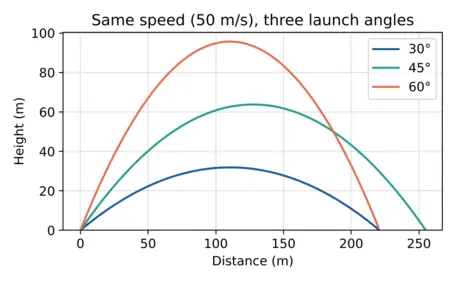
- Predict, then run (Activity 6). Before running, ask students to predict, at the same speed, whether 30° or 60° lands farther and which angle gives the longest shot. Then compare their predictions with the plots.
- Reflection (end of class, 3 min): "Which function from today would you reuse in the final project, and why does keeping it in its own function make debugging easier?"
- Pacing: Most students finish Activities 0-4 in about 50 minutes. Activities 5-6 take 30-40 minutes. Treat unfinished items as homework due before the next session.
- Extensions for fast finishers: return the landing distance and time of flight as extra outputs, add air drag with a loop, or overlay several angles with hold on.
Assessment
References and Resources
Web resources:
Create Functions in Files (MathWorks documentation)
https://www.mathworks.com/help/matlab/matlab_prog/create-functions-in-files.html
MathWorks' official reference for function syntax: the function keyword, inputs and outputs, and file naming. Useful for students as a reference while they write their first functions.
Add Functions to Scripts (MathWorks documentation)
https://www.mathworks.com/help/matlab/matlab_prog/local-functions-in-scripts.html
Explains local functions in script files, the layout used in every activity. It also covers the placement rule: the activities put functions at the end of the file, which works in R2016b and later; R2024a and later also allow them elsewhere in the script.
Base and Function Workspaces (MathWorks documentation)
https://www.mathworks.com/help/matlab/matlab_prog/base-and-function-workspaces.html
Explains why each function has its own private workspace. It is useful background for the "trace before you run" pass-by-value task in Activity 1.
Find Array Elements That Meet Conditions (MathWorks documentation)
https://www.mathworks.com/help/matlab/matlab_prog/find-array-elements-that-meet-a-condition.html
Introduces logical indexing with relational operators. This is the technique students use in the Golf Ball Simulator to keep only the above-ground part of the trajectory.
sind: Sine of argument in degrees (MathWorks documentation)
https://www.mathworks.com/help/matlab/ref/double.sind.html
Reference for sind and cosd, which let students use launch angles in degrees directly and avoid the most common bug in Activity 6.
MATLAB Onramp (MathWorks)
https://matlabacademy.mathworks.com/details/matlab-onramp/gettingstarted
A free, self-paced introductory course. Recommended for students who need to review vectors, plotting and basic syntax before the workshop.
MATLAB Online (MathWorks)
https://www.mathworks.com/products/matlab-online.html
Runs MATLAB in a web browser with no installation. All the starter files run there, which makes the workshop usable in online, hybrid or lab settings.
MATLAB Grader (MathWorks)
https://www.mathworks.com/products/matlab-grader.html
An optional auto-grading platform. Instructors can turn the check values printed by each starter file into randomized assessment tests.
4.3 Projectile Motion, University Physics Volume 1 (OpenStax)
https://openstax.org/books/university-physics-volume-1/pages/4-3-projectile-motion
A free, peer-reviewed textbook section that derives the projectile equations and the range formula R = v0² sin(2θ)/g. Students and instructors can use it to check the simulator's results and to confirm that 45° gives the longest flight in Activity 7.
Print resources
Attaway, S. (2022). MATLAB: A Practical Introduction to Programming and Problem Solving (6th ed.). Butterworth-Heinemann. ISBN 978-0-323-91750-6.
A widely used introductory MATLAB textbook for engineering students. Its chapters on user-defined functions, local functions and variable scope cover the same material as this workshop, so it works as an optional companion reading.