Initial Publication Date: October 9, 2025
DOIThis page currently has no DOI, but you may request a DOI be assigned. |
Cite thisDashboard Setup
Access the Dashboard
After you set up your password protected account you will have access to your dashboard using the URL generated for your team. This is the page you will keep returning to, so it is highly recommended that you bookmark the URL for easy access.
Log in to my Dashboard
Make Changes and Save
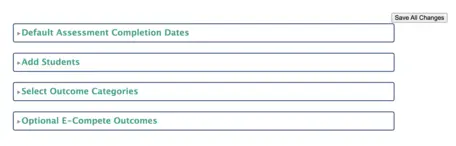 Click on the image to expand it.
 On the dashboard page, you will see four boxes. By clicking on each, you will have options to edit and save the changes you make.
Assessment Completion Dates
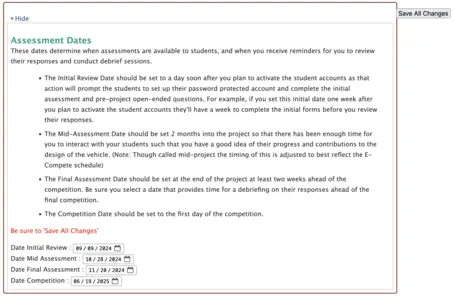 Click on the image to expand it.
 These are the dates you will use for completing steps in E-Compete. After entering the dates, be sure to hit '
Save All Changes'.
- The Initial Review Date should be set to a day soon after you plan to activate the student accounts as that action will prompt the students to set up their password protected account and complete the initial assessment and pre-project open-ended questions. For example, if you set this initial date one week after you plan to activate the student accounts they'll have a week to complete the initial forms before you review their responses.
- The Mid-Assessment Date should be set 2 months into the project so that there has been enough time for you to interact with your students such that you have a good idea of their progress and contributions to the design of the vehicle. (Note: Though called mid-project the timing of this is adjusted to best reflect the E-Compete schedule)
- The Final Assessment Date should be set at the end of the project at least two weeks ahead of the competition. Be sure you select a date that provides time for a debriefing on their responses ahead of the final competition.
- The Competition Date should be set to the first day of the competition.
Adding Student Names and Email Addresses
 Click on the image to expand it.
 Automated messages are sent to the email addresses you enter here. It is very important that you carefully enter your students' names and email addresses, using email addresses that the students check often. After entering this information, be sure to hit '
Save All Changes.' Once you do this, you will be able to activate the students. You are able to add the students as soon as they join the team and can activate them when you are ready to start E-Compete. If a student leaves the team, you have the option to delete the student. You can also add any student that joins the team after you start E-Compete.
Select the Outcome Categories for Your Team
Select the outcome categories you would like to use for your team. E-Compete has a set of general outcome categories as well as outcome categories for MATE-ROV and Baja SAE competitions. If you would like to develop a set of competition-specific outcomes, please contact us.
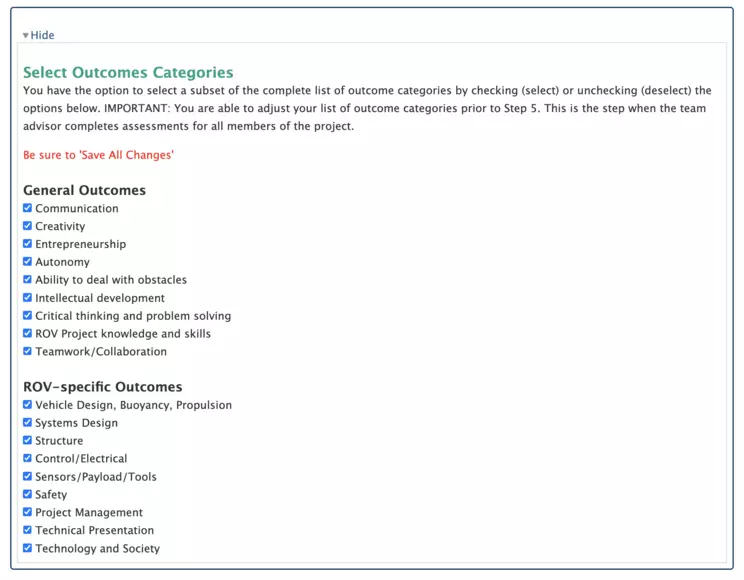 Click on the image to expand it.
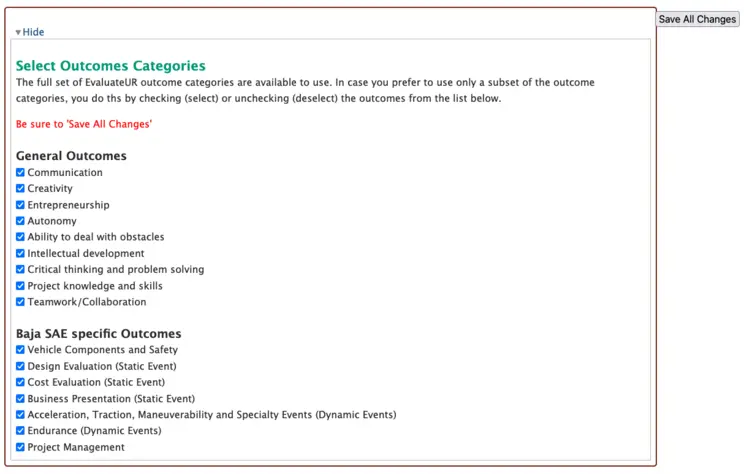 Click on the image to expand it.
For larger teams, it is unlikely you can observe and interact with all the students using all the outcome categories. Use this box to select a sub-set of outcome categories. Be sure to save all changes after doing this. If you advance to Step 5 of E-Compete before selecting outcome categories, all the outcomes will be used.
Optional E-Compete Outcomes
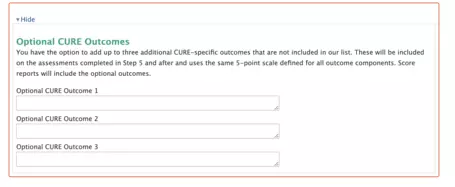 Click on the image to expand it.
 In case there are additional outcomes for your team, you can add up to 3 additional outcomes here. These outcomes will be included in the assessments in Step 5 and after. Be sure to hit '
Save All Changes' if you add outcomes.
Ready to Begin
Once you have set dates, added all your students, and selected outcomes, you are ready to get students started with E-Compete!
Using E-Compete

 Show details about the assessment dates
 Hide
Hide